
Spreads Hub
  • Home
  • About Spreads Hub
  • Contact Us
  • Privacy Policy
  • Write For Us
Home  /  Internet • Tech  /  How to split screen on Chromebook quickly

How to split screen on Chromebook quickly

Lora Ray August 22, 2023 Internet, Tech Comments are off

Chromebook is also similar to other laptops but its Operating System isn’t the same as Windows or macOS. Its Operating System name is Chrome OS which was developed based on Gentoo Linux. Since its operating system isn’t the same as others, its operating is also not the same. Here are some guidelines for how to split screens on Chromebook.

Table of Contents

Toggle
  • Drag and Drop to Split Screen on Chromebook
  • How to split screen on Chromebook by two Chrome tabs
  • Using the touch screen and mouse pad to split screen on Chromebook
  • How to split screen on Chromebook with keyboard
  • Split screen on Chromebook from task view
  • Split Screen by using Duallas Extension

Drag and Drop to Split Screen on Chromebook

Here you can split-screen on Chromebook quickly just by using the touchpad

Step 1: First open any app

Step 2: Then grab the top bar

Step 3: Now pull down and move it to any side (if you want to the right side then move to the right or if you want to move left side then move to the left side)

Step 4: You see a highlighted rectangle box

Step 5: Now release your fingers from the touchpad

Step 6: Your app takes place 50% space on the Chromebook screen automatically.

Step 7: Fit another app to another side of the screen just follow the step 1 to 6.

How to split screen on Chromebook by two Chrome tabs

It is a simple task which can do anyone just following the steps

Step 1: Open Chrome browser

Step 2: Open one more tab

Step 3: Now click on resize (restore down) icon (this icon is located on the top right side)

Step 4: Place your cursor on any one tab

Step 5: Grab the tab and move it to any side (left or right)

Step 6:  Here you can see a highlighted rectangle shape

Step 7:  Now leave your fingers from the touchpad or mouse button

Step 8: That tab takes the place of half screen of the Chromebook automatically

Step 9:  To set another tab to the other half screen just see 1 to 8 steps again and move the tab to the other side

Using the touch screen and mouse pad to split screen on Chromebook

If your touch screen is okay then you can apply it to split-screen

Step 1: Open any two apps

Step 2: Now place your cursor on the resize (restore down) icon (it is situated at the top right side of the app)

Step 3: Long press on it with your mouse

Step 4: Now use your finger to draw down on the screen and resize the icon down

Step 5: Now the screen shows you arrows pop on the right and left

Step 6: Go over whichever arrow you want to go

Step 7: Follow the 1 to 6 steps to do for the other side

How to split screen on Chromebook with keyboard

Split-screen with a keyboard shortcut. You have to use three keys to split-screen.

Step 1: Open an app

Step 2: Click on Alt + [    ( to move left side )

Step 3: Open another app

Step 4: Now click on Alt + ]   ( to move right side )

You can reset the two windows. Just place your cursor between two windows. Now grab it and move it to any side to adjust the two-screen size.

Split screen on Chromebook from task view

From task view, you can split-screen just using the touchscreen

Step 1: Grab anyone app

Step 2: Move to the left or right side

Step 3: Leave your finger from the app (this app automatically set that side)

Step 4: Now the other will be a task view

Step 5: Select any app from that task view which one you want to set that screen.

Split Screen by using Duallas Extension
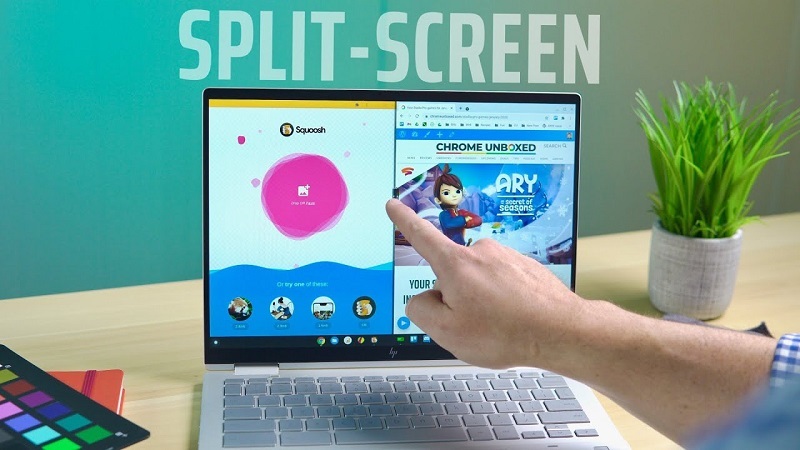
You can split the screen by using Duallas Extension. This extension is located on the top right of the URL bar. First, click on the tab which one you want to separate from the others. Now click on the extension and choose the size you want. After that, the window splits automatically by your recommended size.


Previous Article
Next Article

About Author

Lora Ray

Lora Ray is a farmer of words in the field of creativity. She is an experienced independent content writer with a demonstrated history of working in the writing and editing industry. She is a multi-niche content chef who loves cooking new things.

Related Posts

  • How to Choose a Snorkeling Camera for Florida Waters

    August 24, 2026
  • What are computer viruses?

    What are computer viruses?

    July 22, 2026
  • Discover how integrated control systems streamline operations by connecting hardware, software, and networks into one seamless, automated management framework.

    What Are Integrated Control Systems and How Do They Work

    July 16, 2026

Recent Posts

  • Colorful midnight fireworks exploding over Boston Harbor during First Night Boston 2027 on New Year's Eve
    First Night Boston 2027: Event Schedule, Fireworks, Ice Sculptures and Activities October 14, 2026
  • Learn how to choose the right pickup truck in Texas. From payload and towing power to everyday fuel efficiency and cab comfort, find your best truck match.
    How to Choose a Pickup Truck for Work, Towing, and Daily Driving in Texas October 13, 2026
  • Riders exploring red rock trails during the Sedona Mountain Bike Festival 2026 in November
    Sedona Mountain Bike Festival 2026 Guide: Tickets, Schedule, Rides, Trails and More October 8, 2026
  • Massive helium balloon floating above crowds at the Macy's Thanksgiving Day Parade in New York City
    America’s Thanksgiving Parade 2026: Date, Time, Route, Schedule, and Floats October 4, 2026
  • Protect your vehicle with professional ceramic coating in New Braunfels, TX. Get high-gloss shine, UV defense, and long-lasting paint protection. Call today!
    How To Choose Window Film For Heat, Glare, Privacy, And UV Protection In New Braunfels, Texas September 30, 2026
  • Two pillows with different firmness levels displayed on a neatly made bed
    Firm vs. Medium-Firm Pillows: What’s the Difference? September 28, 2026

Categories

  • Admission Guide
  • Apps
  • Aquarium
  • Auto
  • Bathroom
  • Beach
  • Beauty
  • Bedroom
  • Bike
  • Blog
  • Business
  • Business Ideas
  • Car
  • Career Advice
  • Celebrity Gossips
  • Child Care
  • Cricket
  • Desktop
  • Diet
  • Digital Marketing
  • DIY
  • Education
  • Entertainment
  • Exercise
  • Family Talks
  • Fashion Trends
  • Food and Fruit
  • Football
  • Forex
  • Garage
  • Garden
  • Health and Fitness
  • Hobby
  • Home Improvement
  • Hotel
  • Internet
  • Investment Ideas
  • Jewelry
  • Kitchen
  • Laptop
  • Lifestyle
  • Living Room
  • Management Ideas
  • Marketing Ideas
  • Mountain
  • Movies
  • Music
  • Networking
  • Opinion
  • Photography
  • Real Estate
  • Recipe
  • Relationship
  • Self Improvement
  • SEO
  • Shopping Guide
  • Smartphone
  • Sports
  • Style
  • Tech
  • Tennis
  • Travel
  • Website Design
  • Wedding
  • Weight Loss
  • Window
  • World

Archives

Categories

Theme by ThemesPie | Proudly Powered by WordPress